> ## Documentation Index
> Fetch the complete documentation index at: https://docs.brickyfi.com/llms.txt
> Use this file to discover all available pages before exploring further.
# Integrations
> Connection with other tools
You can access the `Integrations` page by clicking on your nickname in the top right-hand corner, then `settings`. Then, in the left-hand menu, choose `Integrations`.
## CSV
The CSV file import function is reserved for Supporters. [Support the project: Become a supporter](https://app.brickyfi.com/supporter.php)
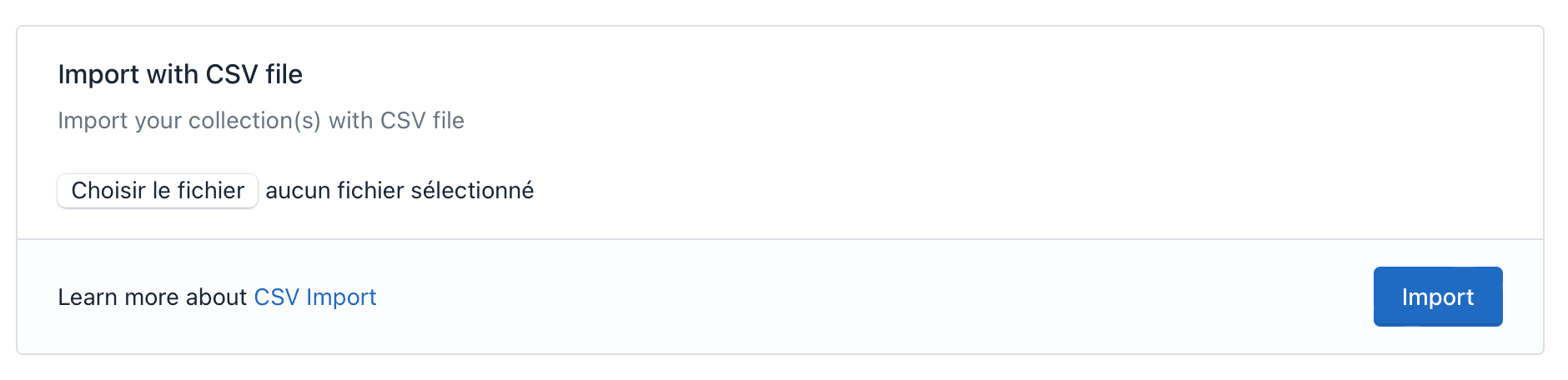
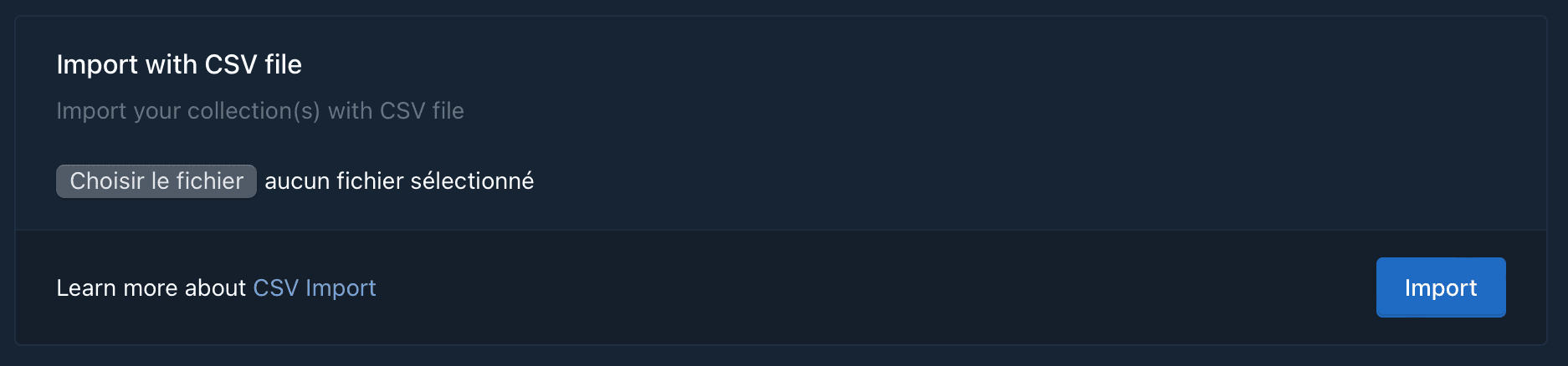 You can import your collection by submitting a `.csv` file
Importing by csv file **only allows you to import sets or figs you own**. If you wish to import sets for sale or sold, you must first import them into the `owned` collection and then add the for sale or sold transactions from the Brickyfi interface.
The number of lines in the CSV file must not exceed 100.
### File format
The `.csv` file is a text file with the various fields separated by `;`.
It may or may not include a header line which, if present, must comply exactly with the following syntax:
```Rust theme={null}
setid;itemid;date;purchase_price;status
```
For each set or fig you wish to import, you must add a line with the following information:
Setid or Figid of the set or fig you want to add.
Item number (if you have several copies). If the field is empty, we take the value 1.
Purchase date in YYYY-MM-DD format. If the field is empty, the current date is used.
Purchase price of the item. If the field is empty, 0.00 is used.
New or used?
New item
Used item
Here is an example of a correct `.csv` file:
```Rust theme={null}
setid;itemid;date;purchase_price;status
10220;2;2024-05-06;;used
910033;1;2024-05-06;210.25;new
40684;1;;;new
77050;;;;new
```
Then click on the `Import` button. The system will check the `.csv` file for any anomalies.
If it contains errors, it will tell you where the errors are.
If this is correct it will import the file and create the records in the database.
No records will be created until the system detects errors. You can therefore submit your file several times without the risk of duplicates.
### Codes erreur
Unable to upload file.
No file.
Choose a file to import.
The file must be a `.csv` or `.txt`.
Unable to upload file.
The number of lines in the CSV file must not exceed 100.
The header line is incorrect.
You can either delete this line or write exactly the following line:
```Rust theme={null}
setid;itemid;date;purchase_price;status
```
Incorrect number of fields or incorrect separator.
Check that fields are separated by `;` and that you haven't forgotten any.
The `status` field is incorrect. It should be `new` or `used`.
The `purchase_price` field is incorrect. It should be a numeric value with a `.` as decimal separator.
The `date` field is incorrect. It must be in the form `YYYY-MM-DD`. For example, for April 1, 2024: `2024-04-01`.
The `itemid` field is incorrect. It must be an integer value.
The set or fig reference does not exist.
There are already transactions for this setid,itemid in the database (you already own it or have sold it). Change the value of `itemid` if you want to add a new set.
You can import your collection by submitting a `.csv` file
Importing by csv file **only allows you to import sets or figs you own**. If you wish to import sets for sale or sold, you must first import them into the `owned` collection and then add the for sale or sold transactions from the Brickyfi interface.
The number of lines in the CSV file must not exceed 100.
### File format
The `.csv` file is a text file with the various fields separated by `;`.
It may or may not include a header line which, if present, must comply exactly with the following syntax:
```Rust theme={null}
setid;itemid;date;purchase_price;status
```
For each set or fig you wish to import, you must add a line with the following information:
Setid or Figid of the set or fig you want to add.
Item number (if you have several copies). If the field is empty, we take the value 1.
Purchase date in YYYY-MM-DD format. If the field is empty, the current date is used.
Purchase price of the item. If the field is empty, 0.00 is used.
New or used?
New item
Used item
Here is an example of a correct `.csv` file:
```Rust theme={null}
setid;itemid;date;purchase_price;status
10220;2;2024-05-06;;used
910033;1;2024-05-06;210.25;new
40684;1;;;new
77050;;;;new
```
Then click on the `Import` button. The system will check the `.csv` file for any anomalies.
If it contains errors, it will tell you where the errors are.
If this is correct it will import the file and create the records in the database.
No records will be created until the system detects errors. You can therefore submit your file several times without the risk of duplicates.
### Codes erreur
Unable to upload file.
No file.
Choose a file to import.
The file must be a `.csv` or `.txt`.
Unable to upload file.
The number of lines in the CSV file must not exceed 100.
The header line is incorrect.
You can either delete this line or write exactly the following line:
```Rust theme={null}
setid;itemid;date;purchase_price;status
```
Incorrect number of fields or incorrect separator.
Check that fields are separated by `;` and that you haven't forgotten any.
The `status` field is incorrect. It should be `new` or `used`.
The `purchase_price` field is incorrect. It should be a numeric value with a `.` as decimal separator.
The `date` field is incorrect. It must be in the form `YYYY-MM-DD`. For example, for April 1, 2024: `2024-04-01`.
The `itemid` field is incorrect. It must be an integer value.
The set or fig reference does not exist.
There are already transactions for this setid,itemid in the database (you already own it or have sold it). Change the value of `itemid` if you want to add a new set.