> ## Documentation Index
> Fetch the complete documentation index at: https://docs.brickyfi.com/llms.txt
> Use this file to discover all available pages before exploring further.
# Quickstart
> Get started with Brickyfi in less than 5 minutes
## Add your first set
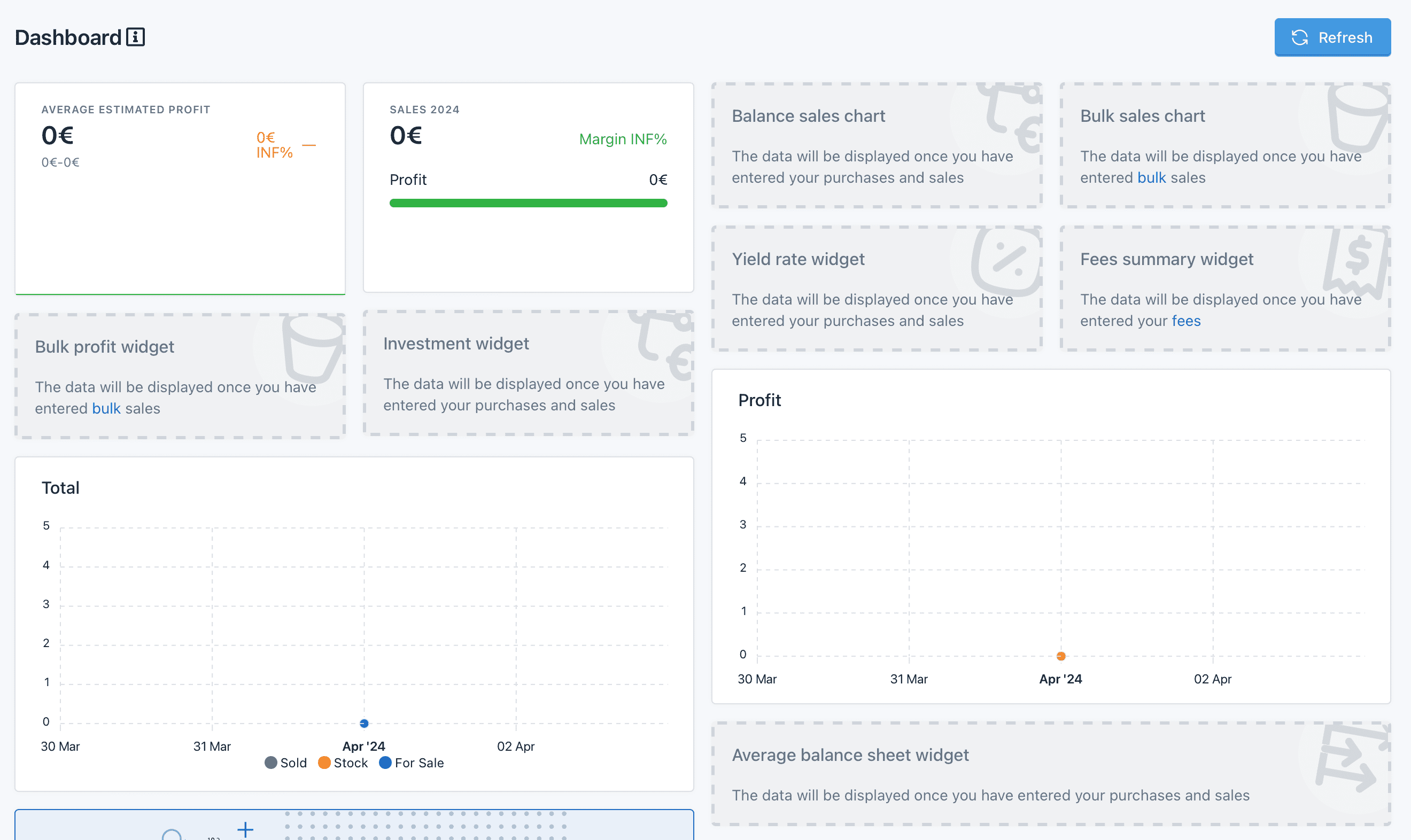
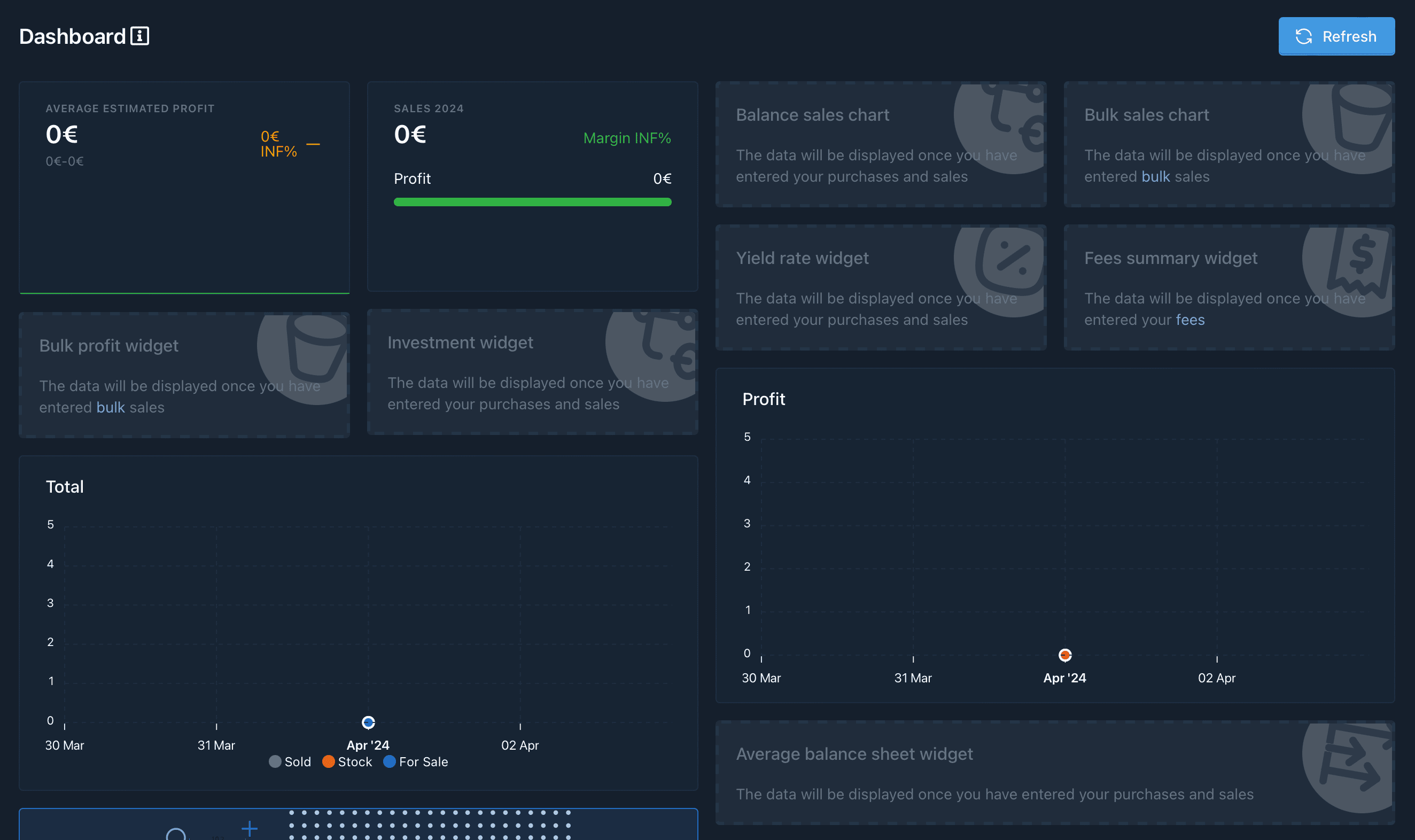
In the beginning there was nothing. You arrive on an empty [dashboard](/lg-english/dashboard) that asks you to add your first `purchases` or `sales`.
 Let's learn how.
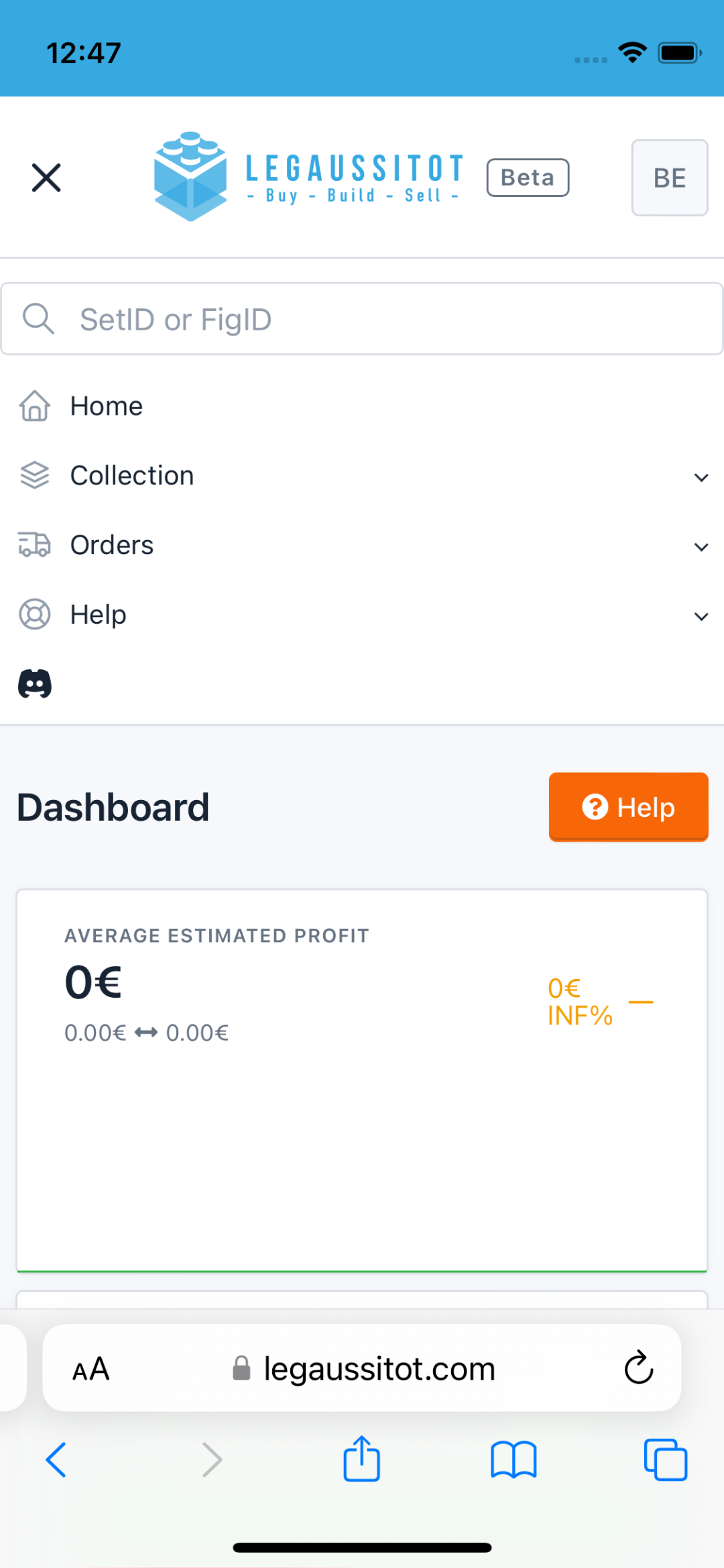
To add an item to your collection (in stock, for sale, sold, to be restored or wanted), start by displaying the set's file by entering its number in the `search box`.
Let's learn how.
To add an item to your collection (in stock, for sale, sold, to be restored or wanted), start by displaying the set's file by entering its number in the `search box`.
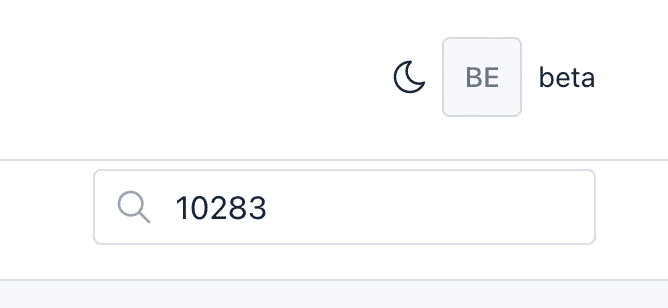
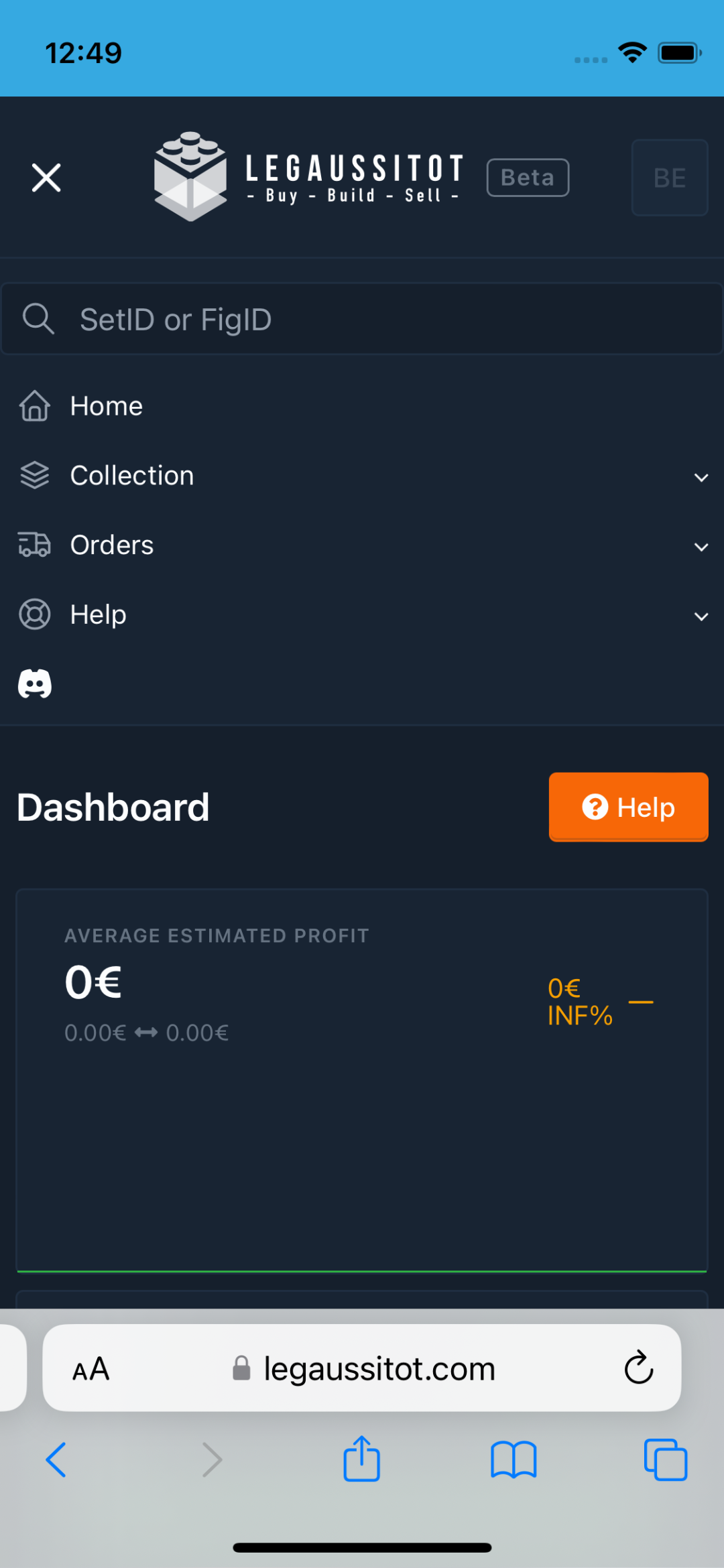
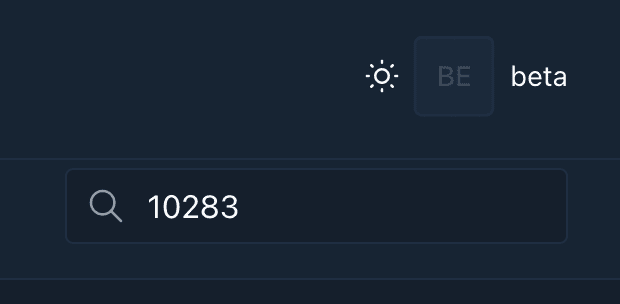 On cell phones, the `search box` appears when you open the menu.
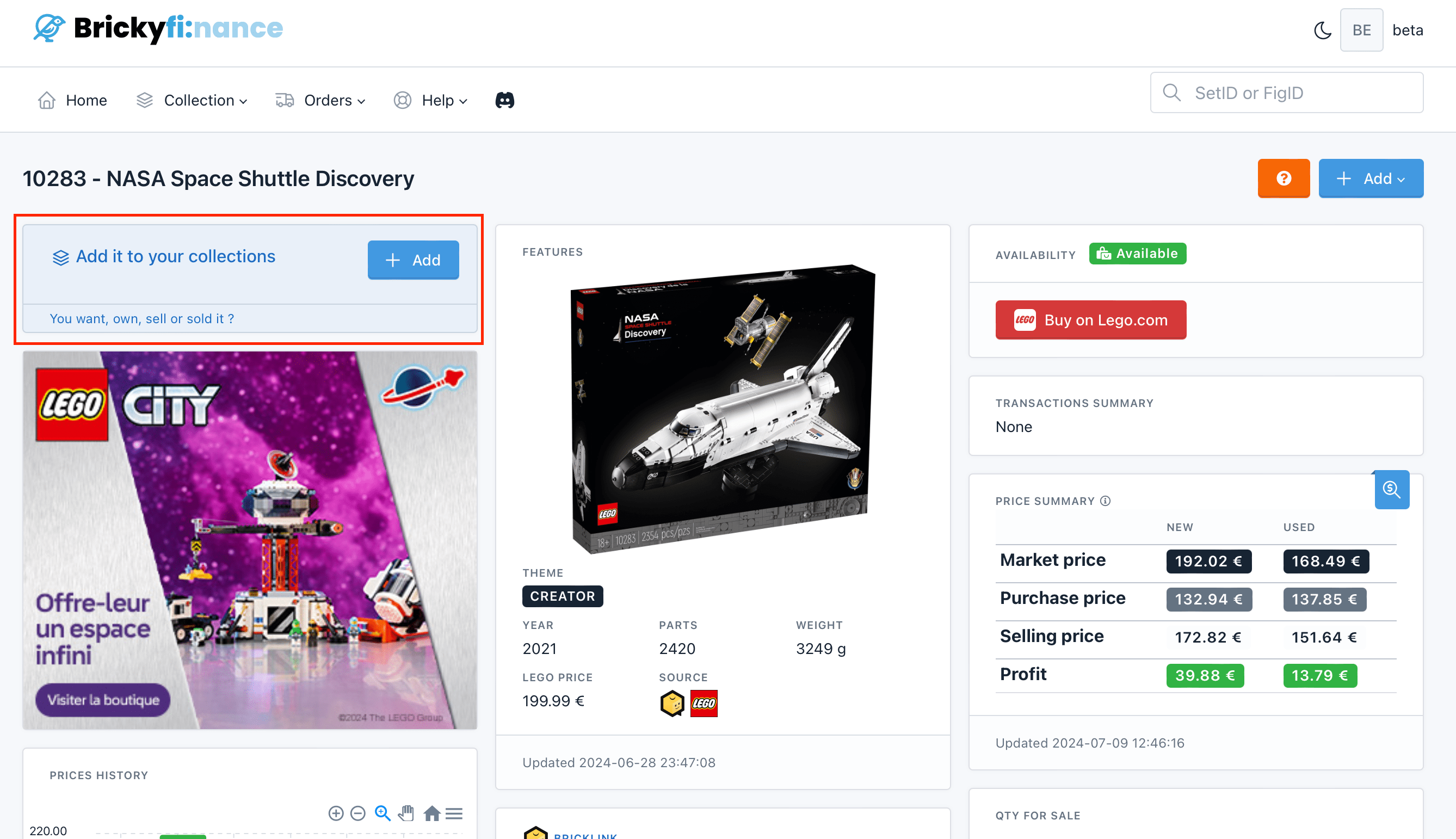
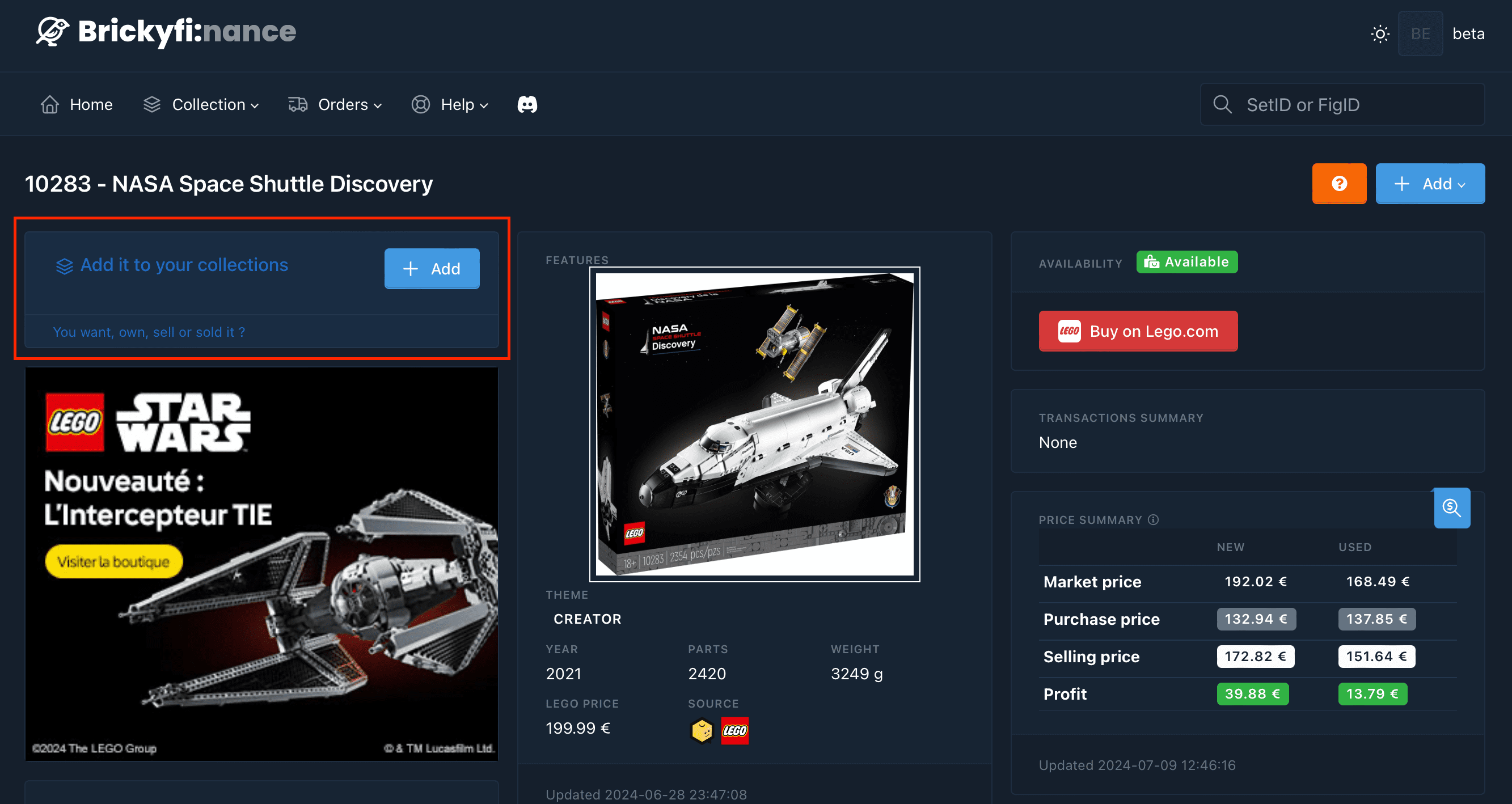
 On the set page, click on the `+Add` button in the `Add it to your collections` box.
 Fill in the fields.
Transaction date.
Don't remember the date? Choose today's date, you can change it later.
Item number (if you have several copies).
New or used? Not required for: `wanted` transactions
New item
Used item
Choose the type of transaction.
Item you don't own but want to buy.
Item you have just bought or purchased.
Item you are offering for sale.
Item you have just sold.
Incomplete item requiring restoration. Can only be selected if a `owned` transaction has been entered first.
As long as items are in the `to restore` state they are not taken into account in the dashboard.
Depending on the type of `transaction`, you will also need to fill in the price fields.
Don't remember a price? Enter `0.00`, you can change it later.
Item purchase price. Mandatory for `owned`, `for sale`, `sold`, `to restore` transactions.
Item sale price. Mandatory for `for sale`, `sold` transactions.
Item sold price. Mandatory for `sold` transactions.
For `sold` items, you can optionally indicate on which store the item was sold.
Store where the item was sold.
Click `Save` to save your entry.
**Congratulations! You've just added your first set! The [dashboard](/lg-english/dashboard) should now take your first transaction into account**.
If you have many sets or figurines to register you can [import them with a CSV file](/lg-english/integrations#csv).
Fill in the fields.
Transaction date.
Don't remember the date? Choose today's date, you can change it later.
Item number (if you have several copies).
New or used? Not required for: `wanted` transactions
New item
Used item
Choose the type of transaction.
Item you don't own but want to buy.
Item you have just bought or purchased.
Item you are offering for sale.
Item you have just sold.
Incomplete item requiring restoration. Can only be selected if a `owned` transaction has been entered first.
As long as items are in the `to restore` state they are not taken into account in the dashboard.
Depending on the type of `transaction`, you will also need to fill in the price fields.
Don't remember a price? Enter `0.00`, you can change it later.
Item purchase price. Mandatory for `owned`, `for sale`, `sold`, `to restore` transactions.
Item sale price. Mandatory for `for sale`, `sold` transactions.
Item sold price. Mandatory for `sold` transactions.
For `sold` items, you can optionally indicate on which store the item was sold.
Store where the item was sold.
Click `Save` to save your entry.
**Congratulations! You've just added your first set! The [dashboard](/lg-english/dashboard) should now take your first transaction into account**.
If you have many sets or figurines to register you can [import them with a CSV file](/lg-english/integrations#csv).