Add your first set

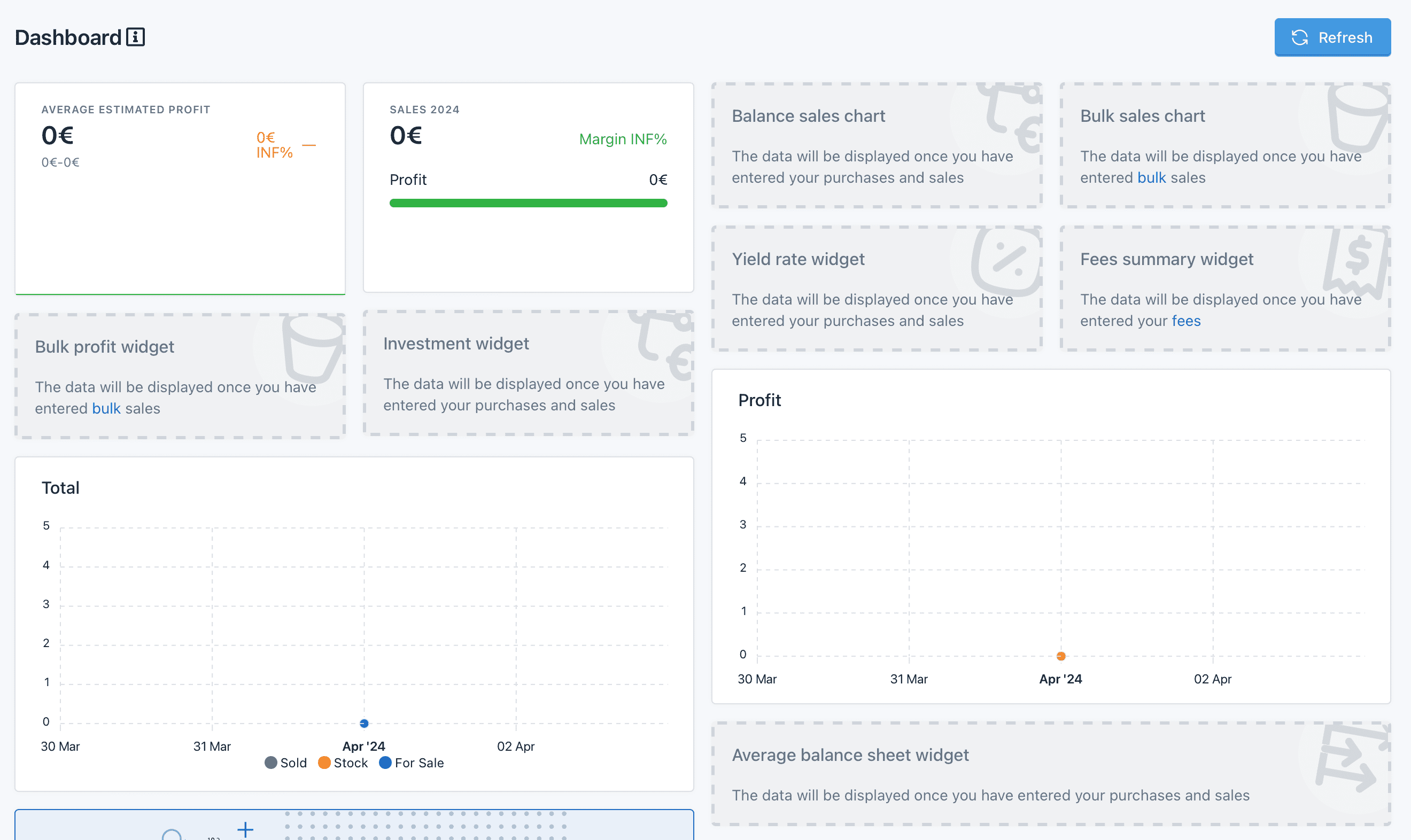
In the beginning there was nothing. You arrive on an empty dashboard that asks you to add your first purchases or sales.

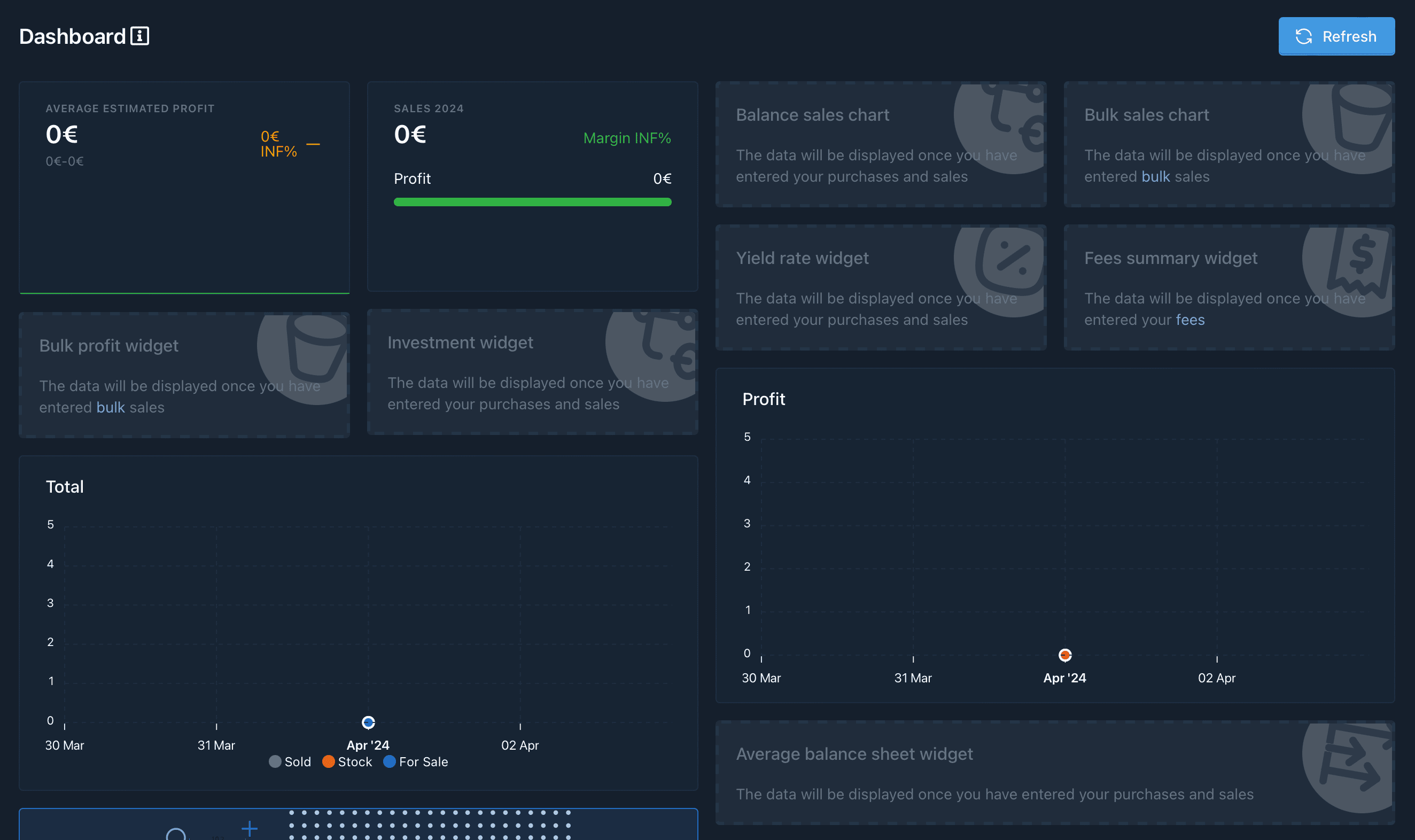
Dashboard on your first login.

Let’s learn how.
1

Search for the set

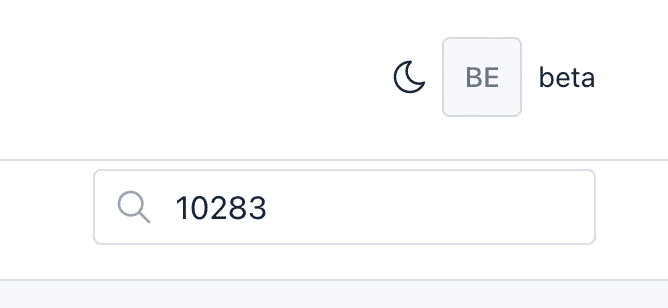
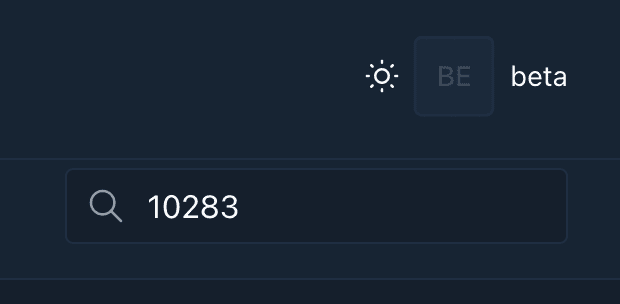
To add an item to your collection (in stock, for sale, sold, to be restored or wanted), start by displaying the set’s file by entering its number in the search box.

Search zone

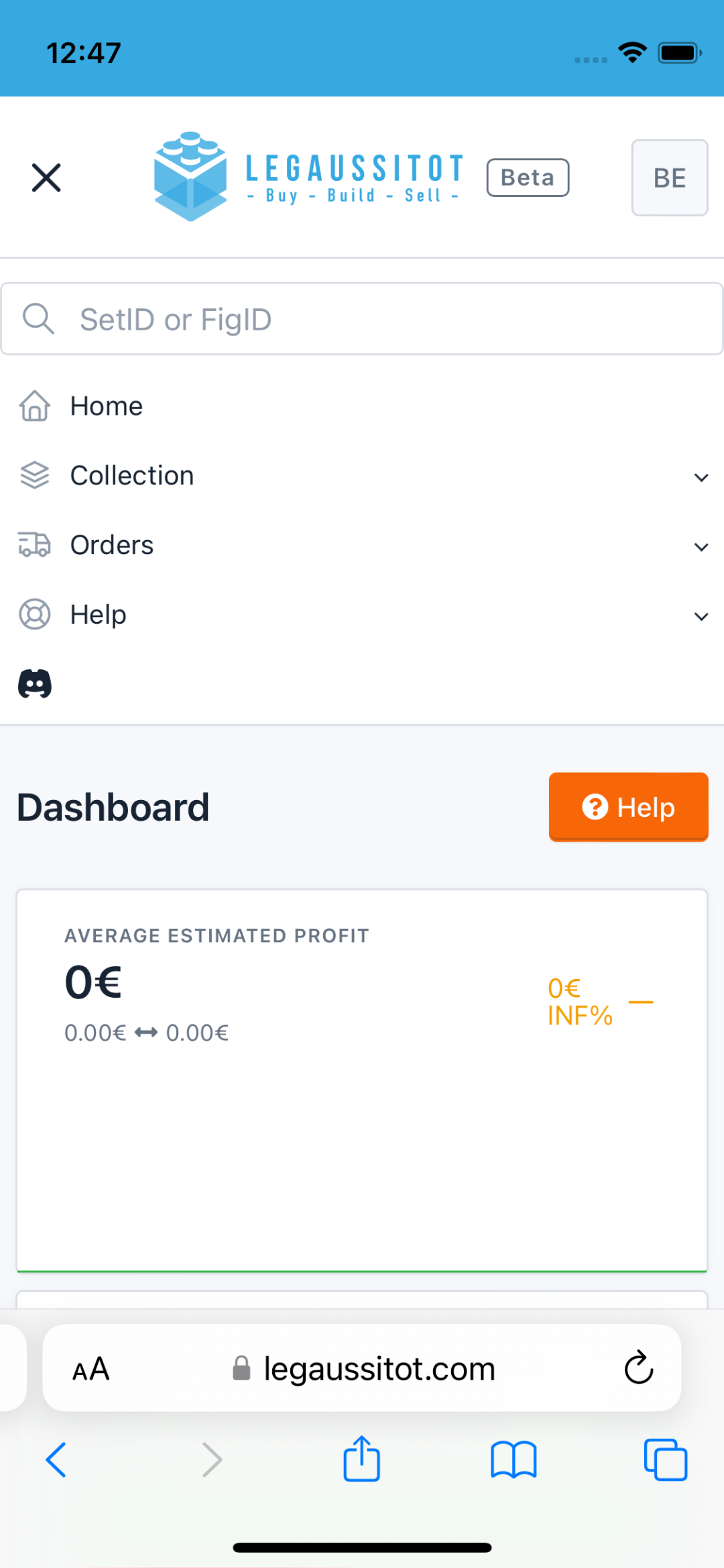
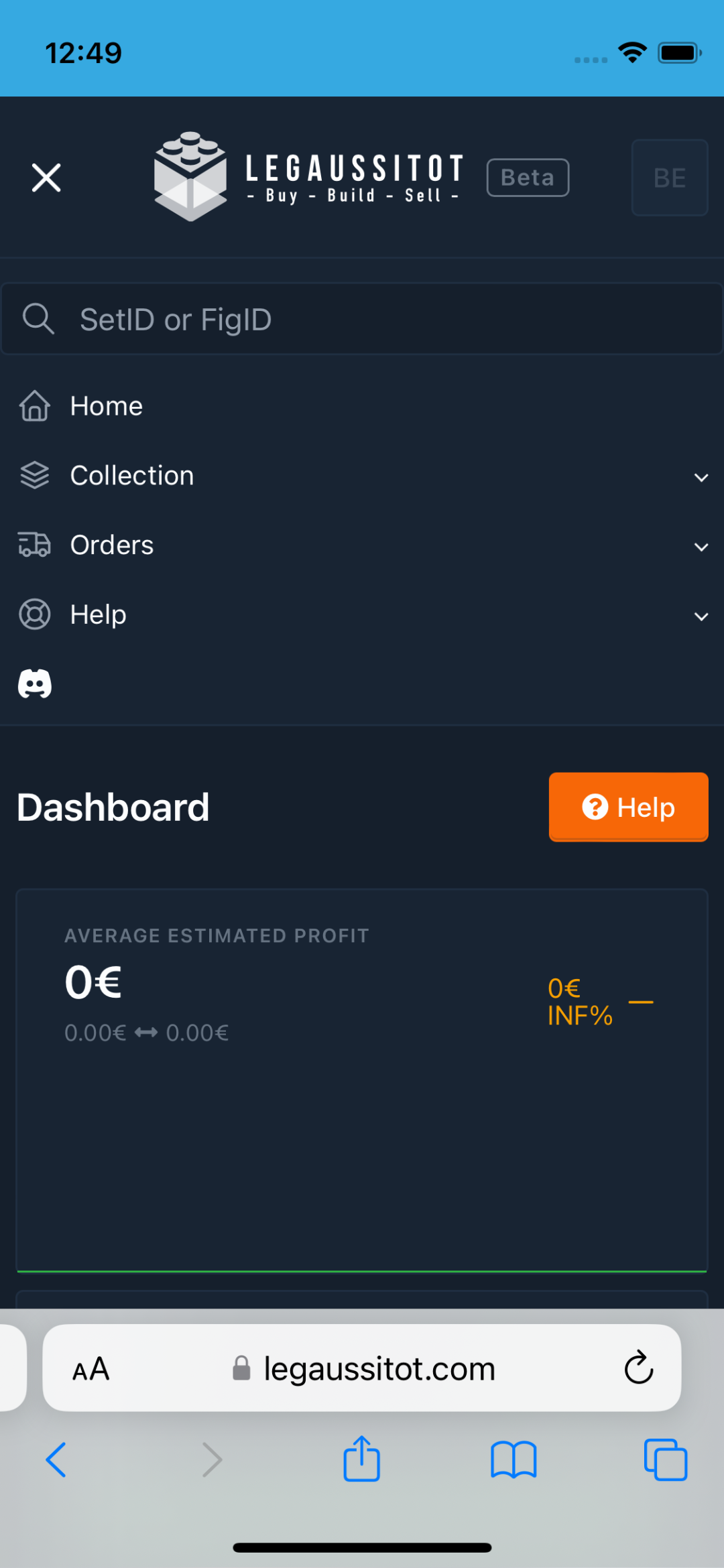
On cell phones, the search box appears when you open the menu.

Zone de recherche sur mobile

2

Add a transaction

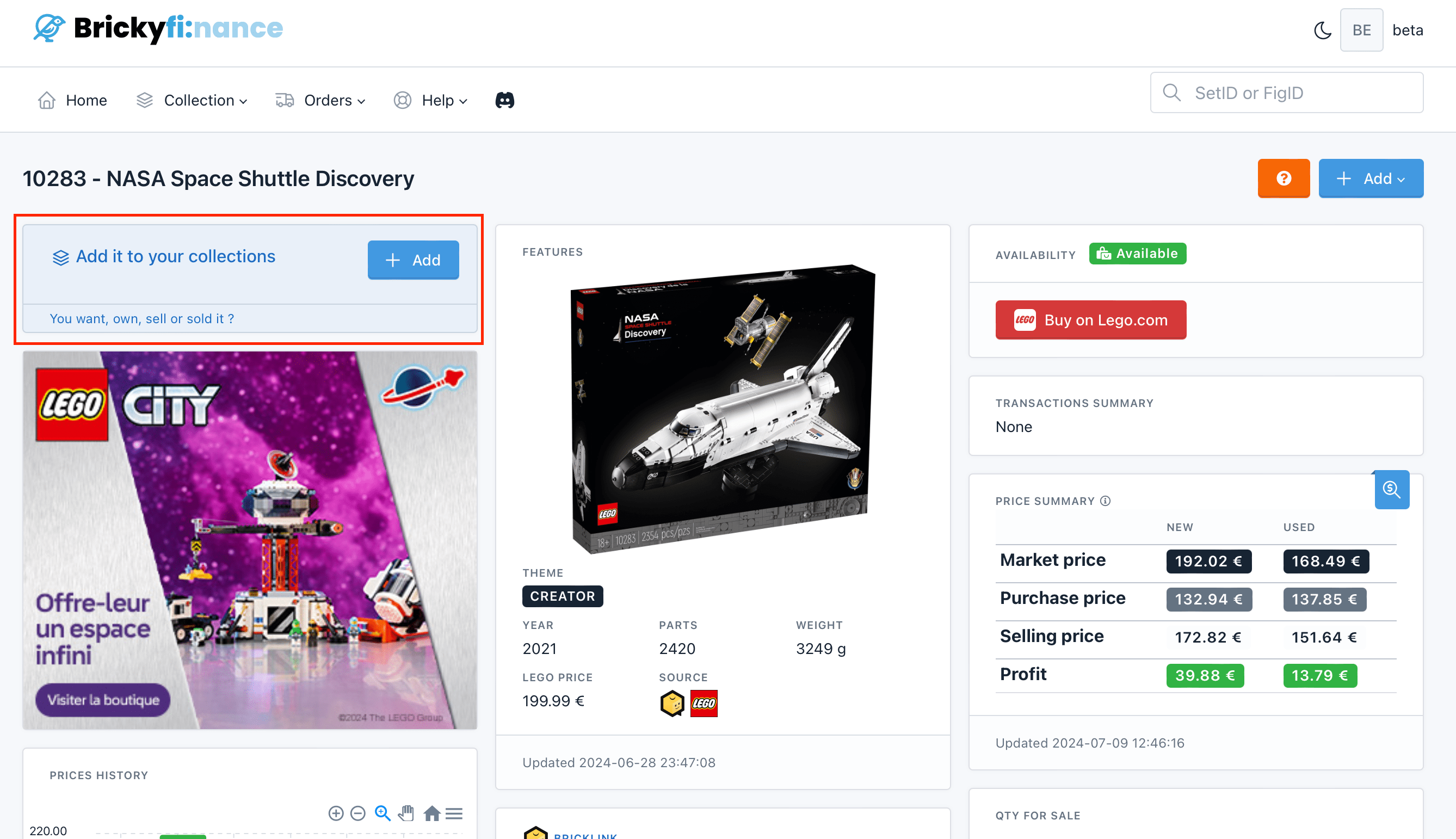
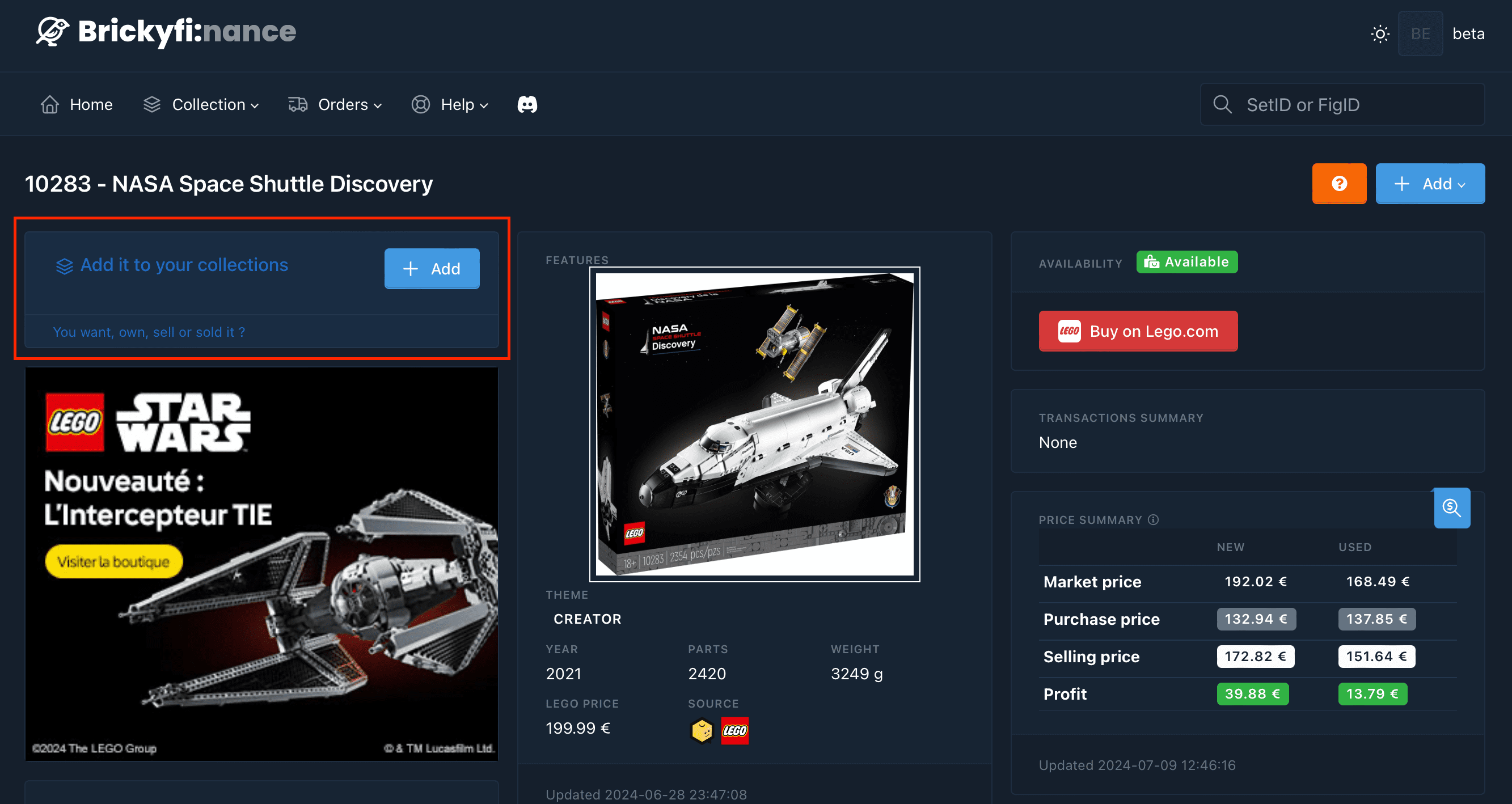
On the set page, click on the +Add button in the Add it to your collections box.

Add a transaction

3

Enter information

Fill in the fields.
date
date
required
Transaction date.
Don’t remember the date? Choose today’s date, you can change it later.
item
integer
required
Item number (if you have several copies).
status
list
required
New or used? Not required for: wanted transactions
transaction
list
required
Choose the type of transaction.
Depending on the type of transaction, you will also need to fill in the price fields.
Don’t remember a price? Enter 0.00, you can change it later.
purchase price
decimal
required
Item purchase price. Mandatory for owned, for sale, sold, to restore transactions.
for sale price
decimal
required
Item sale price. Mandatory for for sale, sold transactions.
sold price
decimal
required
Item sold price. Mandatory for sold transactions.
For sold items, you can optionally indicate on which store the item was sold.
sold on
list
Store where the item was sold.
4

Save

Click Save to save your entry.
Congratulations! You’ve just added your first set! The dashboard should now take your first transaction into account.
If you have many sets or figurines to register you can import them with a CSV file
.