Presentation
The Sets & Minifigs page presents all useful information concerning a set or minifig. It can be accessed by entering a set or minifig reference (according to the Bricklink® nomenclature) in thesearch zone. Depending on your settings, the information and widgets displayed may vary.
Actions
Add a transaction
Transactions represent all modifications to your item. If you buy this item you must create aowned transaction, if you put it up for sale a For sale transaction. Once sold, you must create an sold transaction. Etc…
The various fields entered are saved for each transaction. For example the purchase price entered when creating a
owned transaction will also be present automatically when you create a For sale or sold transaction.+Add button in the top right-hand corner of the set file, then select Transaction (or click on the +Add button in the Add it to your collections card).. Then fill in the various fields and save.
Date
Date
date
required
Transaction date.
Item number
Item number
integer
required
Item number (if you have several copies).
Status
Status
list
required
New or used? Not required for:
wanted transactionsTransaction
Transaction
list
required
Choose the type of transaction.
Price
Price
Depending on the type of For
transaction, you will also need to fill in the price fields.
decimal
required
Item purchase price. Mandatory for
owned, for sale, sold, to restore transactions.decimal
required
Item sale price. Mandatory for
for sale, sold transactions.decimal
required
Item sold price. Mandatory for
sold transactions.sold items, you can optionally indicate on which store the item was sold.list
Store where the item was sold.
- You have a “new” item and decide it’s time to build it.
1
Add a transaction
Click on the
+Add button in the top right-hand corner, then choose Transaction.2
Enter information
Normally, a owned
transaction already exists for this item (because you own it). Just change the status from new to used and save.- You’ve bought (or been given) an item which, alas, is incomplete. You’ll have to restore it.
1
Add an owned transaction
Click on the
+Add button at the top right, then choose Transaction.2
Enter information
Choose owned as the
transaction for this item. Choose used as the status and finally enter the purchase price (which may be 0.00 in the case of a gift) and save.3
Add a "to restore" transaction
click on the top-right
+Add button, then choose Transaction.4
Enter information
Choose To restore as the
transaction for this item and save.
.- That’s it, I’ve restored my item!
- delete the
transactionTo restore by clicking on the red trash-can icon in theTransactions historywidget at the very bottom of the page. - add a new
transactionowned.
Update a transaction
For the time being, it is not possible to modify a transaction. It must be deleted and then re-created.Delete a transaction
To delete a transaction, go to theTransactions history widget at the very bottom of the page.
Next to the transaction you wish to delete, click on the trash-can icon .
Add a parts purchase
When an item is incomplete, you may need to purchase the missing parts on sites such as Bricklink®. You therefore need to update thepurchase price of this item to take into account the purchase of these additional parts.
To do this, click on the +Add button in the top right-hand corner of the set file, then select Parts purchased.
Then fill in the various fields and save.
Item number
Item number
integer
required
Item number (if you have several copies).
Parts price
Parts price
decimal
required
Purchase price of additional parts.
parts price will be added to the purchase price.
Widgets
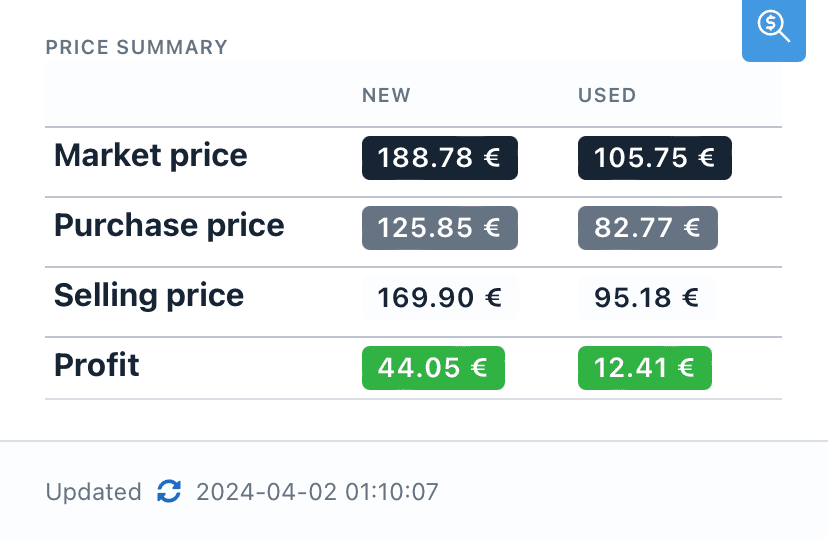
Price summary